Desktop window
One window for iOS and Android devices.
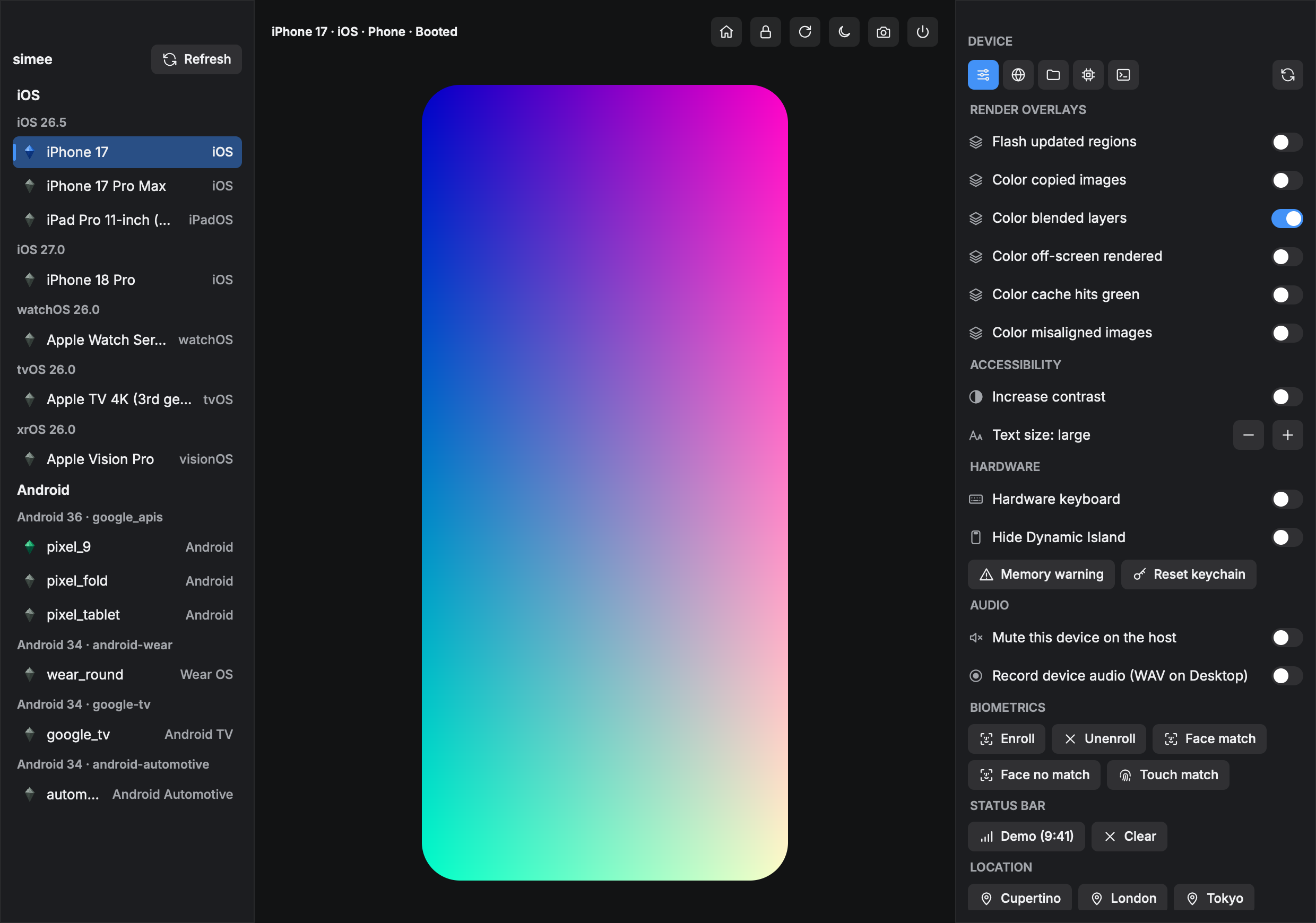
cd desktop cargo run --release # SIMEE_DEVICE=<udid|name|booted> preselects a device cargo run -- --snap shot.png --scene demo # headless render; scenes: demo, android, foldable, # folded, tablet, ipad, watch, tv, apple-watch, apple-tv, empty, resources cargo run --release --features tooling -- --snap shot.png --scene demo # the same, optimized
scripts/desktop-app.sh builds the window as simee.app , a macOS bundle with simee's icon, so the Dock and Finder show the mark. The mark in the window (brand.md) is the activity indicator: it turns beside a running job and on the empty stage while a device boots, and each device in the list shows its state with it.
The window, the 3D device view included, draws with Rune's native Metal backend. SIMEE_GPU_BACKEND=wgpu switches it to wgpu's Metal backend, and metal chooses the default. The window looks and behaves the same on both, but wgpu costs a little more: benchmarks.md and the 3D view's costs below. Rune's own RUNE_GPU_BACKEND overrides it.
3D device view
⌘3 switches the screen to a 3D view: the device's body ( sim_core::body : phones, tablets, foldables and watches) in perspective, lit, with its live screen on the screen face. It is drawn with a depth buffer and 4x MSAA. SIMEE_VIEW=3d starts the window with it on. It draws on both backends: Rune's native Metal backend, the default, has had depth attachments and MSAA resolves since anomalyco/rune#2563 (#193), and wgpu's ( SIMEE_GPU_BACKEND=wgpu ) remains an option. Headless renders of every scene (demo, android, foldable, folded, tablet, watch, turned) in the 3/4, side, back and face-on views, and flat, are byte-identical on the two backends. A TV, head unit or headset has no body and stays flat. Under live Rust editing (the hot feature) there is no compositor, so ⌘3 says it is unavailable there. With the 3D view off, the window is exactly the flat one: screenshots are byte-identical to the build without it on both backends.
It starts in a 3/4 view from the right and above. SIMEE_SCENE_CAMERA starts it in another saved view: front , side (edge on: thickness, keys, camera bump), back or face .
You move the camera with the pointer (#155):
Input
Does
Drag beside the device (anywhere the pointer is an open hand)
Orbit: the body turns with the pointer; the tilt stops 80° above or below
⇧-drag, or a two-finger trackpad drag
Pan: the body follows the fingers, up to half the stage off centre
Mouse wheel, ⌘-scroll, or pinch
Zoom, up to 4x in or out, though never so close that the camera enters the body
Two-finger trackpad rotation
Spins the device with the fingers (from the front or from behind), settling on the nearest quarter turn
⌘0, or the toolbar's Face on
Face on: the screen at 1:1, exactly where the flat view draws it, with the device turned back upright and to the front
⌘1, ⌘2, ⌘4, ⌘5
Saved views: 3/4, front, side, back (⌘3 is the toggle)
⌘F, or the toolbar's Flip
Turns the device over to its back, and again to its front
⌘[ / ⌘]
Turns the device a quarter counter-clockwise / clockwise as seen on screen, from any side. This is the body only: the toolbar's Rotate still turns the guest
A drag that starts on the drawn screen belongs to the device. Touches through the projection come with #156; until then such a drag only says so in the status line. Hold ⌥ to orbit from there anyway. The pointer shows which is which: an open hand where a drag moves the camera (a closed one while it does), the arrow over the screen. Keys still go to the device: the view keys above are ⌘ shortcuts the device doesn't use.
Face on is the "2D" view of #253. The fitted views frame the whole body. Face on frames the live screen at one backdrop pixel per window pixel instead, at any window size: in the demo scene its screen is pixel-identical to the flat view's. Every change (a key, a button, the end of a rotation) moves through one eased, interruptible transition of about 250 ms ( scene::Motion , read at the window's clock). The camera, the flip and the spin are separate tracks, so a spin during a flip leaves the flip to land. A new change sets off from wherever the last one on its track had reached, and a drag stops the camera there; scroll momentum carries on only a scroll nothing has taken over from. Scripted timelines (#254) reuse it, with Motion::go_with to pick each step's easing. Nothing redraws while nothing moves: poll asks for frames only while a transition runs, plus one to land it. This view moves one device; arranging several in one scene is #155's part 3.
When a screen is on the back of the device (a folded book's cover screen), every view looks at the back. A turned device rolls the body with its panel, so the screen reads as the flat view shows it. A foldable lies flat while it streams its inner screen. When it streams its cover screen, emu has folded it, so the body is shown shut. The desktop doesn't know a half-open angle (#154). The toolbar, the keyboard and the panel work as usual, and clicking the 3D view keeps the keyboard on the device. Turning the 3D view off frees its render targets, and the camera is where you left it when it comes back on.
The live screen on the body is the flat view's own picture, with no CPU copy. The flat screen stays laid out under an effect slot that asks Rune for a backdrop copy, and the compositor samples the screen's rect of that copy. That costs one GPU texture copy of the window per drawn frame. Rune can't yet hand a compositor a NativeSurface 's texture (anomalyco/rune#2546, #192). The window draws only when something changes, so a still 3D view costs nothing.
What the 3D view costs on each backend, against the flat view (M3 Max, macOS 26.6.2, Rune e08594c , 2026-11-27; headless, --frames 300 --out <dir> , median of 3 runs of each in a rotating order, a build with --features tooling,rune/frame-profile , 1-minute load average 7 to 11). CPU is Rune's per-frame CPU; GPU is the process's accumulatedGPUTime per frame and includes the frame's readback to the output PNG:
Metal flat
Metal 3D
wgpu flat
wgpu 3D
iPhone 17 scene: frame CPU p50 / p95
0.19 / 0.24 ms
0.27 / 0.32 ms
0.22 / 0.29 ms
0.42 / 0.50 ms
iPhone 17 scene: encode and submit
0.09 ms
0.17 ms
0.13 ms
0.31 ms
iPhone 17 scene: GPU per frame
1.73 ms
1.99 ms
1.71 ms
1.95 ms
Pixel Fold scene: frame CPU p50 / p95
0.18 / 0.23 ms
0.26 / 0.32 ms
0.24 / 0.28 ms
0.44 / 0.58 ms
Pixel Fold scene: encode and submit
0.09 ms
0.17 ms
0.14 ms
0.35 ms
Pixel Fold scene: GPU per frame
1.50 ms
1.76 ms
1.44 ms
1.62 ms
On native Metal the 3D view costs about 0.08 ms more CPU a frame than the flat view, against 0.2 ms on wgpu, and 3D on Metal takes 0.15 to 0.18 ms less CPU a frame than 3D on wgpu. GPU time is the same on both within the runs' spread (about ±0.2 ms). That is why native Metal is the 3D view's default. The live rows below were taken on wgpu before native Metal could draw the scene (#260). They have not been taken again on Metal: a live run needs a window that stays visible on an idle desktop.
What the 3D view costs, against the flat view on the same wgpu backend (Rune f6f6e04 , #260):
flat
3D
Headless, iPhone 17 scene ( --frames 300 , median of 3): frame CPU p50
0.25 ms
0.43 ms
Headless, iPhone 17 scene: encode and submit
0.16 ms
0.32 ms
Headless, iPhone 17 scene: GPU per frame (includes the frame readback)
1.56 ms
1.81 ms
Headless, Pixel Fold scene: frame CPU p50 / GPU per frame
0.22 / 1.59 ms
0.40 / 1.90 ms
Live iPhone 17 Pro, iOS 26.5, 20 s of swipes (one run each): CPU / GPU, % of a core
6.0 / 5.5
8.3 / 6.3
Live, same run: frames drawn, frame time p50 / p95
775, 0.54 / 0.62 ms
786, 0.79 / 0.94 ms
Live, idle 20 s: CPU / GPU %
1.25 / 0.65
1.40 / 0.68
The live rows are a single run each, taken as #215 took them ( --window-script , RUNE_FRAME_LOG , the AGX client's GPU time). A second run of each stopped drawing because its window was covered on a desktop in use (Rune draws nothing while a window is occluded), so there is no median yet. The headless rows render offscreen and don't depend on window visibility.
Rune's headless flags ( --snap , --tree , --script , --video ) are always in debug builds; a release build has them only with the tooling feature. The shipped release build leaves it off: it adds 1,338,496 B to the stripped binary (32,950,904 → 34,289,400 B, Linux x86_64, 2026-11-26) and no measurable startup time.
Devices are listed under iOS and Android, each with its sub-platform. Pick one (boot it if needed): click and drag on the screen for touches; type to use the device keyboard. ⌘⇧H is Home, ⌘L Lock/Power, ⌘S saves a screenshot to the Desktop, ⌘3 switches the 3D view on and off, and while it shows, ⌘0, ⌘1, ⌘2, ⌘4, ⌘5, ⌘F and ⌘[ ⌘] move it. The toolbar follows the form factor:
Device
Controls
iPhone / iPad
Home, Lock, Rotate, Appearance
Apple Watch
Crown press, Side button, Crown up / down
Apple TV
Menu, TV, arrows and Select (the Siri Remote), Appearance
Apple Vision Pro
Home, Appearance
Android phone
Back, Home, Recents, Power, Rotate
Android tablet
the above, plus Stylus (the pointer becomes a pen: moving over the screen hovers, dragging draws)
Android foldable
the above, plus Fold / Half open / Unfold (folded, the view takes the outer screen's shape)
Wear OS watch (round screen)
Back, Home, Power, Rotary up / down
Android TV
Back, Home, Power, D-pad and Select
Android Automotive
Back, Home
Android XR
Back, Home, Power, Look left / Recenter / Look right
iOS frames go to the GPU without copying (the framebuffer IOSurface is sampled directly) and the right-hand panel has five debug tabs (Device, Network, Storage, Processes, Logs). Android frames stream from the emulator's display socket, and the panel shows the device and its live guest console.
Device list
Booted devices come first, under a "Booted" header above the platform and runtime groups. Devices that are booting are listed there too, whether the service says so or a boot started from this window is still running (desktop/src/list.rs, #565).
The search field at the top of the list filters it fuzzily. ⌘K focuses it from anywhere, and ⌘F does too while the list has focus (elsewhere ⌘F flips the 3D view). It matches on the name, device type, runtime, platform, sub-platform, form factor, and the AVD name or UDID. Letters may be scattered: "pix9" finds acceptance-pixel-9 , and "17 26.5" finds the iPhone 17s on iOS 26.5. Every word of the query has to match. A UDID matches only as a run of its characters. The scoring is in sim_core::fuzzy . While you type, the groups collapse to the matches, booted ones first and then the best matches. ↑ and ↓ move through them, Return acts on the highlighted one as a click would (⌥Return selects only), and Escape clears the query. Escape again leaves the field.
One click on a shut-down device, or Return on its row, selects it and boots it. The boot goes through admission as the Boot button's does. ⌥-click selects without booting.
Boots and other long jobs (shutting down, a Duo fold, CarPlay) belong to their device (desktop/src/jobs.rs, #558). The stage's "Waiting for the device to finish booting…" and the indicator at the top right show only the selected device's job, and each row's mark turns while its device has one. Work for the whole window ("Refreshing…") and a count of the other devices' jobs ("1 device booting") are shown beside Refresh. Two boots at once each finish, and each reports its own failure, named by its device. A device runs one job at a time: a second waits, and the status line says so.
The headless scenes list-booted (a device booting from here, selected, at the top) and list-search ("17 26.5" typed, the second match highlighted) show the list.
Panes and settings
The device list (left) and the panel (right) each have a drag handle on their inner edge: drag it to resize (180–420 points for the list, 280–600 for the panel, always leaving the screen at least 420), double-click it for the default width. ⌘⌥S hides and shows the list, ⌘⌥I the panel, ⌘⌥R the resource panel. The headless scenes sidebar-hidden , inspector-hidden , panes-hidden and panes-wide show them.
The window keeps its layout in a small versioned JSON file (desktop/src/settings.rs): ~/Library/Application Support/simee/desktop.json on macOS, $XDG_CONFIG_HOME/simee/ (or ~/.config/simee/ ) on Linux, %APPDATA%\simee\ on Windows; SIMEE_DESKTOP_SETTINGS names another file. It holds the panes' widths and visibility, the last selected device and debug tab, the window's size and position, the screenshot folder ( screenshot_dir ; the Desktop when unset or missing), and the device list's collapsed groups, hidden devices and tools, order and favorites for the organization work that follows. It is read at start and written half a second after changes stop, and again as the window closes, through a temporary file renamed over it. A file that can't be read, isn't valid, or comes from a newer version falls back to the defaults with one line in the status bar. It is copied aside first ( desktop.json.<why>-<secs>.bak ) and never deleted; if even the copy fails, nothing is saved that session. Headless runs never read or write it.
Resource panel
⌘⌥R, or the gauge button in the panel's top-right corner, swaps the panel for the resource panel (desktop/src/resources.rs, #276), and shows the panel first if it was hidden. It shows what the host has left and what each running device costs. Host gauges come from the API's host : busy CPU, load per core, memory pressure and free memory, swap, free disk, the thermal state and the admit / hold / backoff verdict. The device list comes from devices_usage : CPU, memory, disk I/O and (where the host reports it) energy per device, sorted by CPU or memory, with a sparkline of the last minute. Each device the window lists has quick actions: show it in the window, stop its stream (when one runs through the stream API in this window's process), and shut it down. The device on screen shuts down as the toolbar's button does; any other device goes through the API's shutdown , and the gauges and the device list follow at once. A device the window doesn't list (a stock emulator started without an AVD) has no actions.
The panel samples at most once a second, on a thread of its own, and only while it shows: with the panel, the inspector or the window hidden it asks for nothing and schedules no wake. A sample that changes nothing shown draws no frame. Its visibility and sort persist in the settings file ( resources ). The headless scenes resources and resources-memory show it with fixed data.
Admission before a boot
Before the window boots a device it asks the API's admission_check (the device's platform, form factor and count; see Admission) whether the host can take it (desktop/src/admission.rs, #275), on a thread of its own so the window never waits. On admit the device boots with no UI. On hold or backoff a sheet drops from the top of the window with the numbers ("Booting pixel_tablet would take memory used from 78% to 89%") and every reason the API gave, and offers Boot anyway, Boot N (when the host admits some of the devices asked for but not all: the first N, from predicted.admissible ) and Cancel (or Escape). Boot N is the default button when offered, otherwise Cancel. "Why? See the resource panel" shows the resource panel beside the sheet, with the host's verdict now. "Don't ask again for Android phone devices this session" skips the check for that platform and form factor on the next boots, until the window quits; it is remembered only when the sheet boots, not when it is cancelled. A check never blocks silently: one that fails or can't start boots anyway and says so in the status bar. The window boots one device at a time (the toolbar's Boot), so Boot N shows only for a request of several devices; it creates and clones no devices yet. The headless scenes admission and admission-many show the sheet with fixed data.
Screenshot preview
⌘S, or the toolbar's Screenshot button, saves the device's screen to the Desktop as a PNG, as before, on iOS and Android alike. ⌘S works wherever the focus is in the window. A thumbnail of the shot then slides up into the window's bottom-right corner, as the macOS screenshot preview does (desktop/src/shot_preview.rs):
Do
What happens
Nothing
It stays 5 s, then slides off to the right. The file stays saved
Hover over it
It stays while the pointer is there, and for at least 1.5 s after
Take more shots
They stack leftwards, newest in the corner, up to four. A fifth sends the oldest away
Drag it into Finder, Mail, Slack, a browser upload…
It drops as the PNG file. The drag carries the file and the PNG data (Rune's drag_out ). A drop the other app accepts dismisses the preview
Click it
Opens the file in its default app (Preview)
Right-click it
Open, Copy (the PNG to the pasteboard), Show in Finder, Delete (removes the file)
Swipe right on it with two fingers
Dismisses it early
Under the system's reduced motion it appears and leaves without sliding. The window asks for frames only while a preview moves, plus one wake when the next one is due to leave. The screenshot and android-screenshot headless scenes show it settled.
Pop-out windows
Any running device can leave the main window for a native window of its own, sized to its screen, and come back (desktop/src/popout.rs, #286). Pop it out from its row's context menu in the device list (Pop Out to Window), the stage toolbar's pop-out button, or ⌘⇧O; the main window then shows the next running device, and the list marks the one that's out. Several devices can be out at once. Pop back in from the pop-out's toolbar, ⌘⇧O in it, the row's menu (Pop Back In), or by closing the window: closing returns the device to the main window as its selected device, it never shuts the device down. Selecting a device that's out focuses its window. Closing the main window ends the app, pop-outs included.
The device's connection moves with it rather than reconnecting: an iOS device's capture thread and HID session (the zero-copy surface keeps its latest frame and wakes the window now drawing it), an Android device's display stream and console worker. The pop-out's first frame is the one the main window last showed, and it keeps drawing while the main window is hidden. Each window owns the device it shows, so its touches and keys can only reach that device. A pop-out has the device's toolbar (the form factor's controls, without the tablet stylus) and ⌘S; its console results and errors show on its own status line. It is flat: the 3D device view stays in the main window.
A popped device that stops, shut down from the resource panel, the CLI or a script, or an emulator that went away, lets go of its connection at once: the pop-out says the device stopped and keeps only Pop Back In, and the device comes back to the main window as one that isn't running, never with its last frame. A pop-out asked for on a device that isn't connected yet (a row's menu on a device that wasn't selected) waits up to 10 seconds for it, then gives up and says so, so a later scan never pops it out unasked.
Each device's pop-out frame is kept in the settings file ( popouts , by UDID or AVD name), so popping the same device out again, in this run or the next, opens it where it was. A frame saved on a display that's no longer connected opens on the nearest one that is, whole where it fits, as the main window's restore checks its own frame. Reopening the pop-outs that were open at quit is #288. The windows open at run time through Rune's open_window , which headless runs don't do: the popped scene shows the main window with its device out, and the pop-out's own view is checked in the tests.